For subcontractor office staff billing on AIA G702/G703
Catch missing billing lines before you submit your pay app.
The Construction Control Subcontractor Pay App Bridge is an Excel workbook — a worksheet for use alongside your AIA G702/G703 — that links the T&M tickets and change-order requests you enter to your pay-app lines, then runs seven checks — including approved change orders with no line on the pay app — and flags what does not reconcile.
$39 one timeNo subscription. No per-user fee. No sales call.
Start with the free checklist✓ One-time purchase✓ Excel workbook✓ No subscription
Built for desktop Excel (recommended). The workbook prepares your numbers for review — it does not file or submit anything.
Construction Control / Exception Report
Seven defined checksTransparent scope · one-time $39
What it is: three files — the Excel workbook, a Quickstart PDF, and a README. What it is not: hosted software, a filing service, or a subscription.
Verified before launch: all seven checks were test-fired on example data with errors planted on purpose, and the files you download are checksum-verified against the release build.
Start with the free checklist — no email required.
The Pay App Pre-Submission Checklist is a free one-page PDF that walks the same seven checks by hand — 21 items, three for each check — before a pay application leaves your office.
- Built for the office admin, bookkeeper, or project manager at a specialty subcontractor who assembles pay apps from T&M tickets, change-order requests (CORs), and the pay application Schedule of Values.
- Work it top to bottom against your tickets, COR log, and pay application — each item is something you verify against your own records, not from memory.
- One page, printable, and free. Direct download from this page — no email required, no checkout.
The checklist is the manual pass; the workbook runs the same seven checks against your linked records. The checklist is a worksheet for use alongside your AIA G702/G703 and your own records — it is not a contract review and not legal advice. Prefer Payhip? The same checklist is free there too.
If your pay app came back because…
In the words of the people who bill this work every month:
“if you do an in scope change order to a subcontractor, it does not pull in that cost to the pay app”
“We were using the old trusty Excel AIA G702/G703's but there's a lot of room for input error”
“There's a lot of manual input that simply shouldn't be done. Lots of duplicate work.”
“Work was done they didn't want to pay change orders.”
“Can I bill for change orders that haven't been signed yet?”
On a typical billing day, the T&M tickets live in one place, the change-order requests in another, and the schedule of values in a third. They get compared by eye, line by line, usually at the deadline. When something doesn't line up — a ticket that was never billed, a COR with nothing behind it, a billed amount that isn't the approved amount — the first person to find it can be the GC's reviewer, after the pay app has already gone in.
The Pay App Bridge exists so you find those mismatches first, in your own office, from one list.
| The usual routine | With the Pay App Bridge | |
|---|---|---|
| Where the records sit | Tickets, CORs, and the schedule of values in separate files | All three in one workbook, linked to each other |
| How they get compared | By eye, line by line, at billing time | Seven named checks run against the linked records |
| What you work from | Memory, notes, and a second look | One Exception Report summarizing detected exceptions by check, with counts and amounts |
| When mismatches surface | Often after submission, in review | Before you bill, while they are still yours to fix |
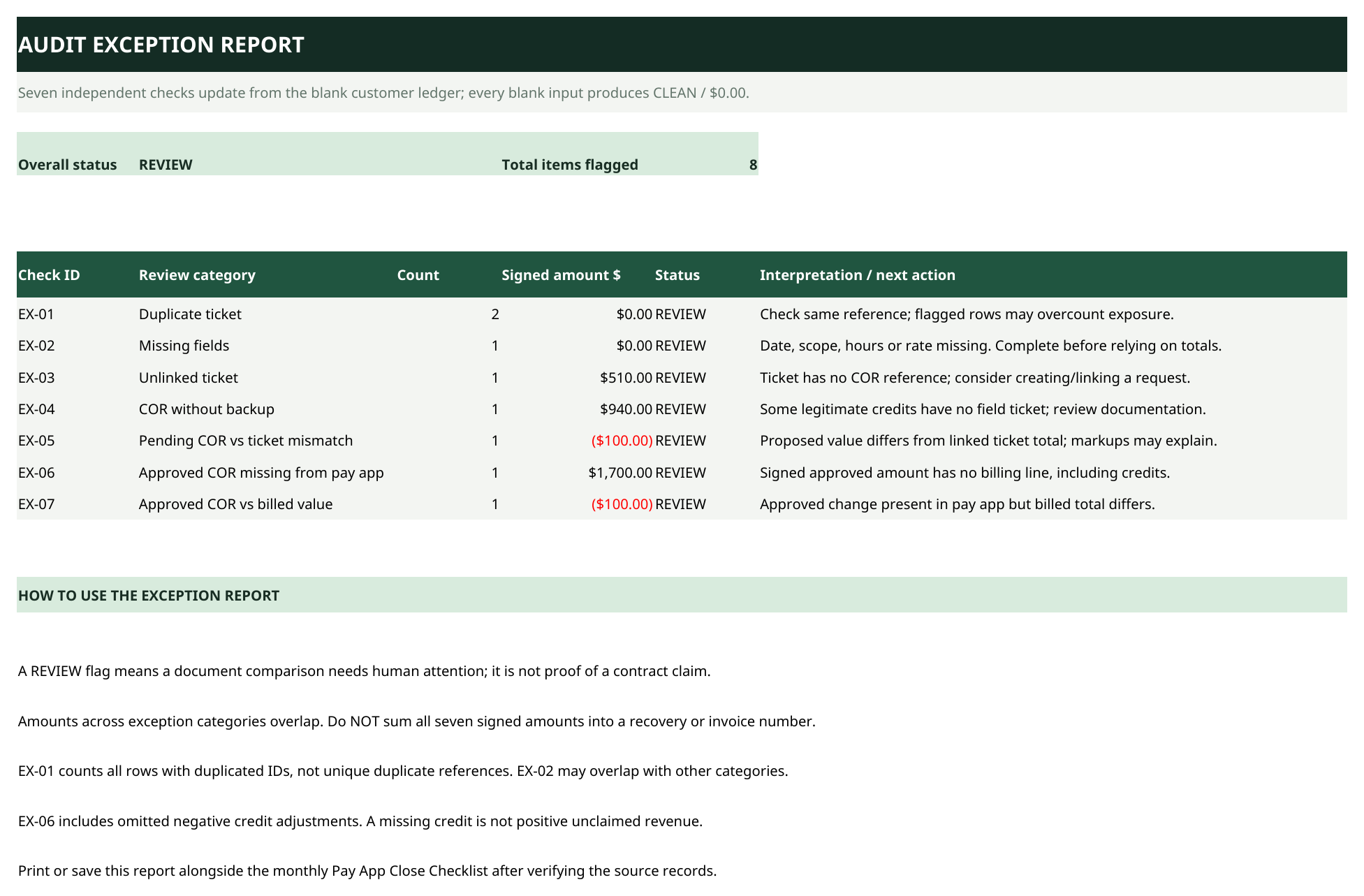
What the Exception Report looks like
This is the report the workbook produces: one summary row per check, with the counts and amounts the workbook computed. Below is a screenshot of the actual workbook (version 1.1.2) with the worked example entered. The screenshot shows manually entered example records alongside the workbook's formula-generated check results.
How to read it
- A flag is a question, not a verdict. Each row points at a record that needs a person's eyes before billing.
- The references are yours. Ticket numbers and COR numbers come from what you entered — the report speaks in your own paperwork.
- Nothing is sent anywhere. The report is a tab in your workbook, on your machine.
The records it ties together
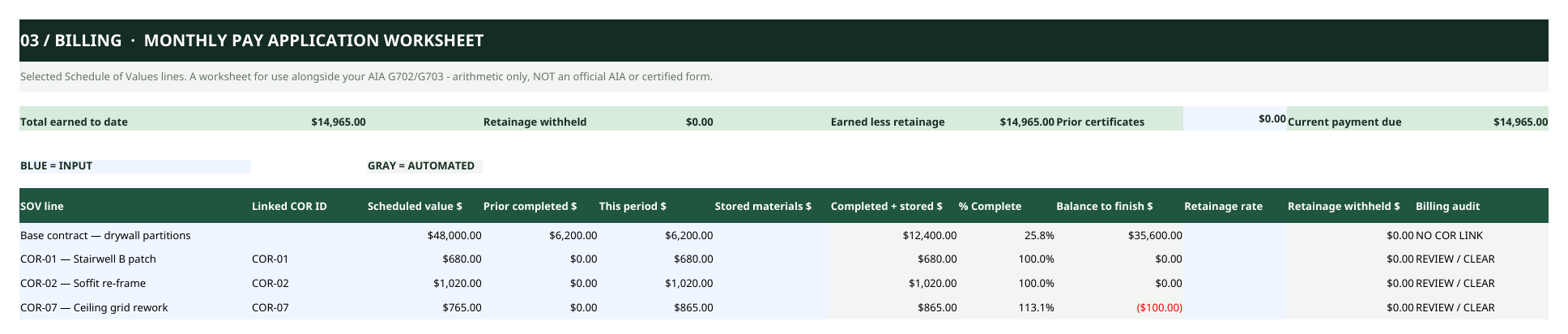
T&M tickets feed change-order requests; approved change orders land on the schedule of values you bill from. The workbook keeps those three lists linked — here is the Pay App SOV tab from the same worked example:
Watch the workbook work — 75 seconds
A short walkthrough of the actual workbook: the pay-app schedule of values it reconciles, the Exception Report with all seven checks firing on example data, and the limits of what it does — stated on screen, not footnoted. It plays only when you press play.
Synthetic example data throughout.
Read the transcript
Before a pay application goes out, someone in the office has to reconcile the T&M tickets, the change orders, and the schedule of values — usually by eye. Mismatches slip through.
This is Construction Control, an Excel workbook for specialty subcontractors. It reconciles T&M tickets to change-order requests, to the pay-app schedule of values. This copy is loaded with a synthetic worked example — a fictional company, with errors planted on purpose.
The exception report flags what doesn't reconcile. On this example data, all seven checks fired — eight items flagged for review: duplicate tickets, a ticket with missing fields, an unlinked ticket, a COR without backup, and an approved COR missing from the pay app, among others. Each flag is a prompt for a person to review.
Honest limits: Column D is entered manually. The workbook does not flag billing over one hundred percent, retainage-rate errors, or G702/G703 totals mismatches. And it includes no bonus files.
If you reconcile tickets, change orders, and pay apps in Excel, the workbook is thirty-nine dollars, one time, on Payhip. Start with the free pre-submission checklist — both links are on this screen.
How it works
-
01Input
Log your T&M tickets
Enter each time-and-materials ticket in the workbook as the work happens — ticket number, date, and the fields your billing needs.
-
02Input
Link tickets to CORs, CORs to the pay app
Connect each ticket to the change-order request it supports, and each COR to the schedule-of-values line it belongs to. Column D of the schedule is typed in by you, as it is on the form itself.
-
03Review
Run the checks before you bill
The seven checks compare the linked records and produce the Exception Report. Work the flagged rows, fix what needs fixing, and then bill the way you normally do.
Also free: the T&M Ticket Log template our checks are built around — Excel, no email required. Prefer Payhip? The same template is free there too.
The seven checks
Every check is named, and the list is the whole list — the workbook runs these seven and no others.
-
EX-01
Duplicate ticket
Same ticket entered more than once in the ticket log.
-
EX-02
Missing fields
Date, Scope, Labor hours, or Loaded $/hour left blank on a ticket.
-
EX-03
Unlinked ticket
A ticket that is not linked to any change order.
-
EX-04
COR without backup
A change-order request whose linked tickets total $0.
-
EX-05
Pending COR vs ticket mismatch
A pending COR amount that differs from its linked tickets.
-
EX-06
Approved COR missing from pay app
An approved COR that is absent from the Pay App SOV.
-
EX-07
Approved COR vs billed value
The amount billed differs from the approved COR amount.
-
IMPORTANT LIMIT
Not an all-purpose audit
A pending COR billed on the pay app is not flagged. None of the seven checks can see a pending change order that has been billed on the pay app.
One limit, printed on purpose: a pending COR that is billed on the pay app is invisible to all seven checks. The full list is in Limitations.
Inside the actual workbook
Screenshots of the delivered workbook file itself (version 1.1.2), with the worked example entered — the same example data as the demo video. Calculated values are produced by the workbook's formulas; source records and other inputs are entered manually. The company and its records are fictional, and this is example data, not a customer result.

Run the seven checks yourself. The Pay App Bridge workbook runs these seven checks against your linked T&M tickets, CORs, and pay app records in Excel.
Get the workbook — $39 →What this solves — check by check
The workbook is new, so there are no customer stories to quote — and we won't invent any. What we can show you is exactly which billing problem each check answers:
- EX-01 The duplicate ticket entry
- A ticket number entered twice creates a duplicate record that EX-01 flags.
- EX-02 The ticket that can't be reconciled
- A ticket with required fields left blank stalls the reconciliation. EX-02 names the incomplete tickets while the record is still yours to fix.
- EX-03 The work attached to nothing
- A ticket without a linked change-order request is flagged for review.
- EX-04 The COR with nothing behind it
- A change-order request whose linked tickets total $0 is flagged for review.
- EX-05 The two numbers that disagree
- The pending COR says one amount; its linked tickets total another. EX-05 compares them before the GC's reviewer does.
- EX-06 Approved — and never requested
- EX-06 flags approved CORs absent from the entered Pay App SOV.
- EX-07 Billed at the wrong amount
- The amount billed for an approved COR differs from the amount approved. EX-07 puts the two numbers side by side.
Seven checks, run against your own records — before the pay app goes out, not after it comes back.
Get the workbook — $39 →Straight talk: the old way, and this way
Keep working in Excel using the workbook's defined ticket, COR, and SOV inputs. The difference is who does the comparing — you, by eye, or the workbook, by rule — and what it openly leaves to you.
The old way — reconciling by hand
- The ticket log, the change-order log, and the schedule of values sit in separate files or tabs, and you compare them row by row yourself.
- A ticket number entered twice can go unnoticed until someone manually checks the ticket log for duplicates.
- Whether an approved change order actually made it onto the pay app depends on someone remembering to look for it.
- A change-order request with no tickets behind it looks the same on the log as one that is fully backed.
- Every amount gets re-checked by eye, at billing time, usually against a deadline.
With the workbook
- You log the T&M tickets, link them to their change-order requests, and keep the schedule of values in the same workbook — the records are already connected.
- The seven checks run against those linked records and put mismatches detected by the seven checks on one Exception Report, named by check, with counts and amounts.
- You work the flagged rows, fix what needs fixing in your own records, and bill the way you normally do.
- Column D is still yours to type, and the billing decision is still yours — the workbook flags; it does not bill.
What it does not do — printed on purpose
A tool that names its limits is one you can plan around. These are this workbook's:
- No over-100% flag. It does not flag a schedule-of-values line billed past 100% of its value.
- No retainage-rate check. It does not verify the retainage rate or the retainage math on the pay application.
- No G702/G703 totals check. It does not check that the pay application totals tie out between the application and the continuation sheet.
- Column D is entered manually. You type that column yourself, as you do on the form — the workbook does not carry it forward or fill it in for you.
Who it is for — and who it isn't
Built for
- If you prepare the billing: the bookkeeper or office manager at a specialty subcontractor who assembles pay apps from T&M tickets and change orders.
- If you own the company: a small sub that bills on AIA G702/G703 paperwork and wants the mismatches found in-house first.
- Shops that work in desktop Excel and bill T&M work regularly.
Not built for
- Anyone who wants the pay app filed or submitted for them — this workbook does not file or submit anything.
- Teams looking for hosted, multi-user software with logins — this is a workbook file, not a platform.
- Work with no T&M tickets and no change orders — the checks would have nothing to reconcile.
- General contractors managing other companies' billing.
What's included
- The workbook — .xlsx — the Pay App Bridge: ticket log, COR links, schedule of values, and the seven checks with the Exception Report.
- Quickstart Guide — PDF — setup and first-run instructions.
- README — file notes and license.
What you need: desktop Excel, which is the recommended environment for the workbook. Checkout and download are handled by Payhip.
A returned pay app restarts the billing cycle
The work is already done, and its costs are already yours. When a pay application comes back, the cycle restarts: the same T&M tickets, change-order requests, and schedule of values are assembled, corrected, and resubmitted — and payment on work already performed waits for the next cycle to close.
The one part of that cycle you control is where the mismatch gets found: in your own office, before the application leaves it, or later, in someone else's review. The seven checks exist to move that moment earlier.
Pricing, in full
$39 one time
- All three files: workbook, Quickstart PDF, README.
- No subscription. No per-user fee. No renewal.
- Checkout and download through Payhip.
- The price on this page is the price at checkout — if they ever differ, the checkout page governs.
Workbook sales are final — no refunds are offered on the workbook. A free Pay App Pre-Submission Checklist and sample materials are available before purchase so you can evaluate the product first.
A pending COR billed on the pay app is not flagged; none of the seven checks can see a pending change order that has been billed on the pay app.
Get the workbook — $39Not sure yet? The example report above is the free look — it shows the kind of report the workbook produces before you spend anything.
Exactly what's in the download
| File 1 — the workbook | Construction-Control-v1.1.2-Ledger.xlsx (26,273 bytes) — ticket log, COR links, schedule of values, the seven checks, and the Exception Report. |
|---|---|
| File 2 — the guide | Quickstart-Guide.pdf (3,744 bytes) — setup and first-run instructions. |
| File 3 — the notes | README_AND_LICENSE.txt (3,734 bytes) — file notes and license. |
| The seven checks | Duplicate ticket · Missing fields · Unlinked ticket · COR without backup · Pending COR vs ticket mismatch · Approved COR missing from pay app · Approved COR vs billed value. That is the whole list — the workbook runs these seven and no others. |
| Format | Microsoft Excel workbook (.xlsx) for desktop Excel, the recommended environment. |
| Version | 1.1.2 |
| Price | $39, one time. No subscription, no per-user fee, no renewal. Checkout and download through Payhip. |
| Support | constructioncontrolbilling@gmail.com |
Limitations, printed plainly
- Desktop Excel is recommended. The workbook is an Excel file; other spreadsheet apps are not the environment it was built for.
- Column D is typed manually. You enter that column yourself, as you do on the form.
- It does not file or submit anything. It reconciles and flags; you review and you bill.
- Unapproved change orders are checked, not billed. Pending CORs are checked for discrepancies, but the workbook does not automatically include unapproved change orders in pay-app billing or decide whether they are eligible for payment.
- A pending COR billed on the pay app is not flagged. None of the seven checks can see a pending change order that has been billed on the pay app.
- A flag is not a fix. The checks find mismatches; resolving them is still your judgment and your records.
- Three things it does not check. It does not flag a schedule-of-values line billed past 100%, it does not verify retainage rates or retainage math, and it does not check that G702/G703 totals tie out.
Questions, answered straight
Is this software I install, or a subscription?
Neither. It is a set of files — an Excel workbook, a Quickstart PDF, and a README — sold once for $39. There is no account, no login, and no recurring charge.
What do I need to run it?
Desktop Excel is the recommended environment. One column (column D) is typed in manually; everything else follows the workbook's structure and the Quickstart Guide.
Does it file or submit my pay app?
No. It reconciles your tickets, CORs, and schedule of values and flags mismatches before you bill. You review the exceptions and submit the pay app the way you normally do.
Does it replace my G702/G703 forms?
No. It is a worksheet for use alongside your AIA G702/G703 — it reconciles your T&M tickets, change-order requests, and schedule-of-values records. It does not fill in, replace, or check the G702/G703 forms themselves.
What exactly does it check?
Seven named checks — duplicates, missing fields, unlinked tickets, CORs without backup, pending-COR mismatches, approved CORs missing from the pay app, and billed amounts that differ from approved amounts. The full list is here, and it is the whole list.
What happens with unapproved change orders?
They are checked for discrepancies against their linked tickets, but they are not automatically included in pay-app billing, and the workbook does not decide whether they should be paid. A pending COR billed on the pay app is not flagged; none of the seven checks can see a pending change order that has been billed on the pay app.
How do I receive the files?
Checkout is handled by Payhip on the product page, and after purchase you download the files from your Payhip receipt.
What if the file doesn't work, or I can't get it open?
Contact us through the Payhip contact page and we will help you get it working.
Why isn't this a platform like the big construction systems?
Because it isn't one, and it is priced like what it is. Many larger platforms are sold as subscriptions, often with onboarding. This is a $39 workbook that does one narrow job — reconciling T&M billing before it goes out — for shops that are staying in Excel.
Does it work in Google Sheets, LibreOffice, or Excel for the web?
The workbook was built for desktop Excel — Microsoft Excel installed on a Windows or Mac computer — and that is the environment we can stand behind. Other spreadsheet programs are not the environment it was built for, and the checks may not behave the same way there.
Who is this for — and who should skip it?
It is for the person at a specialty subcontractor who assembles pay apps from T&M tickets and change orders in desktop Excel — typically the office admin, bookkeeper, or project manager. Skip it if you want something that files or submits the pay app for you, a hosted multi-user platform with logins, or a tool for work with no T&M tickets and no change orders. The full breakdown is here.
What exactly is in the download?
Three files: the Excel workbook (.xlsx), the Quickstart Guide (PDF), and a README with file notes and license. Nothing else — no bonus files and no add-ons. See What's included.
Why do I type Column D myself?
Column D of the schedule of values is entered manually — the same way you fill it in on the form itself. The workbook does not carry that column forward or fill it in for you; you enter the values, and the seven checks then compare the records around them.
What does the workbook not check?
Three named things: it does not flag billing over 100 percent, it does not check retainage-rate errors, and it does not check G702/G703 totals mismatches. It also does not file or submit anything. The seven checks it does run are the whole list — here they are.
What if I need a refund, or help with my purchase?
Purchases and delivery are handled by Payhip. Workbook sales are final — no refunds are offered on the workbook. A free Pay App Pre-Submission Checklist and sample materials are available before purchase so you can evaluate the product first. If your files will not download or open, email constructioncontrolbilling@gmail.com or use the Payhip contact page and we will help you get it working.

Support
Questions before you buy, or a file that misbehaves after you do — reach us either way:
- Payhip contact page — the route tied to your order.
- Email: constructioncontrolbilling@gmail.com
Support covers the workbook files themselves — setup, opening the files, and how the checks work.
One workbook. Seven checks. $39, once.
If your pay apps are assembled from T&M tickets and change orders in Excel, the Pay App Bridge gives you an exception list to work from before the billing goes out.
Get the workbook — $39Not ready to buy? Start with the free checklist →